Official onboarding • Token-based registration • No mystery steps
Account
This page walks you through creating a new account for
on
base.rgherd.com
using Element X (mobile)
and Element Desktop / Element Web.
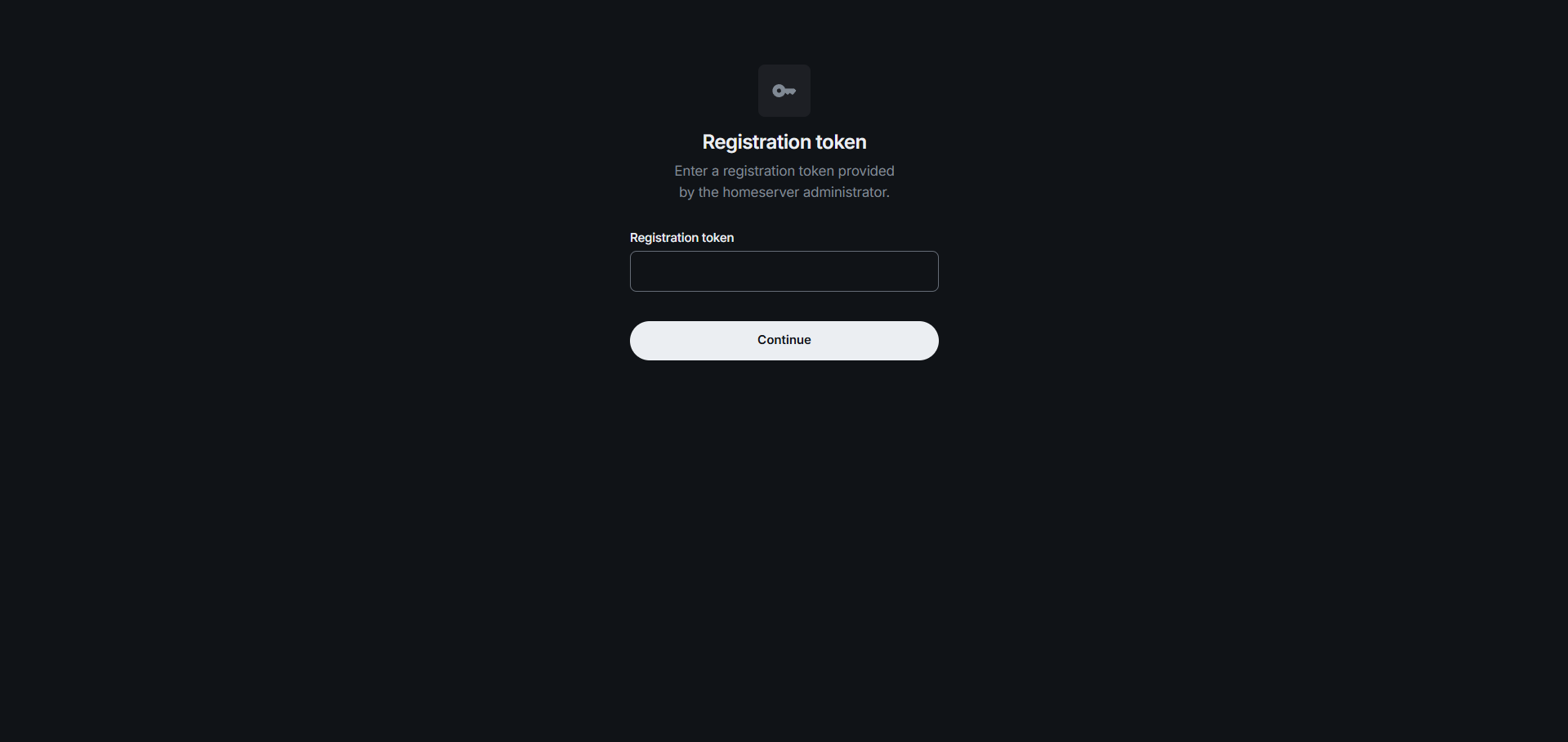
Heads-up: registration requires a Registration Token unless the Ops Team has issued your new account with a temporary password. New users can obtain a Registration Token from an existing user or by emailing Herd Ops at help@rgherd.com.

Choose the correct path before you start. Most setup issues come from the wrong server value, a used token, or creating a second account by mistake.
Mobile setup
Install Element X before registering from your phone.
It connects you to the secure | base | mobile setup flow.
Prefer desktop? Continue in your browser at base.rgherd.com.
Follow these steps inside Element X to create your account.
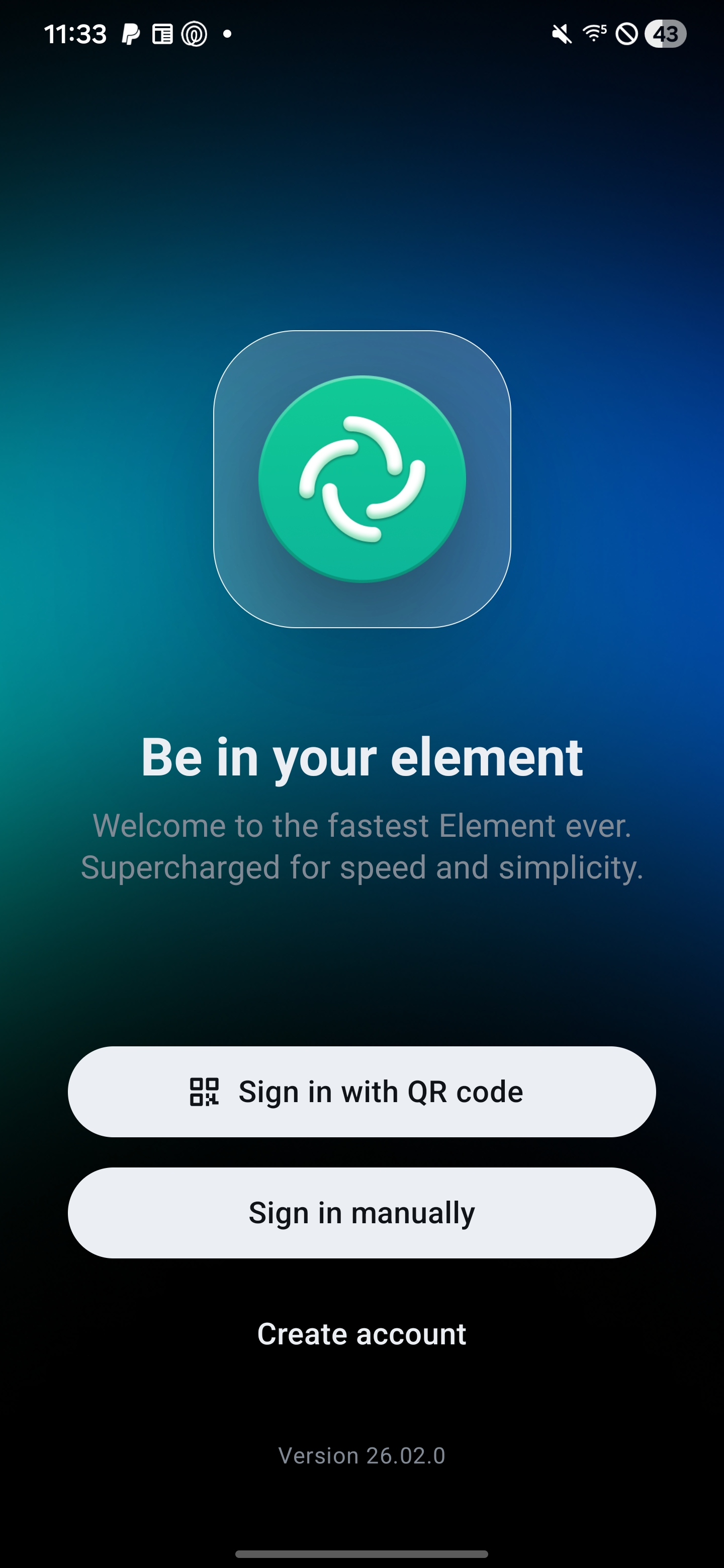
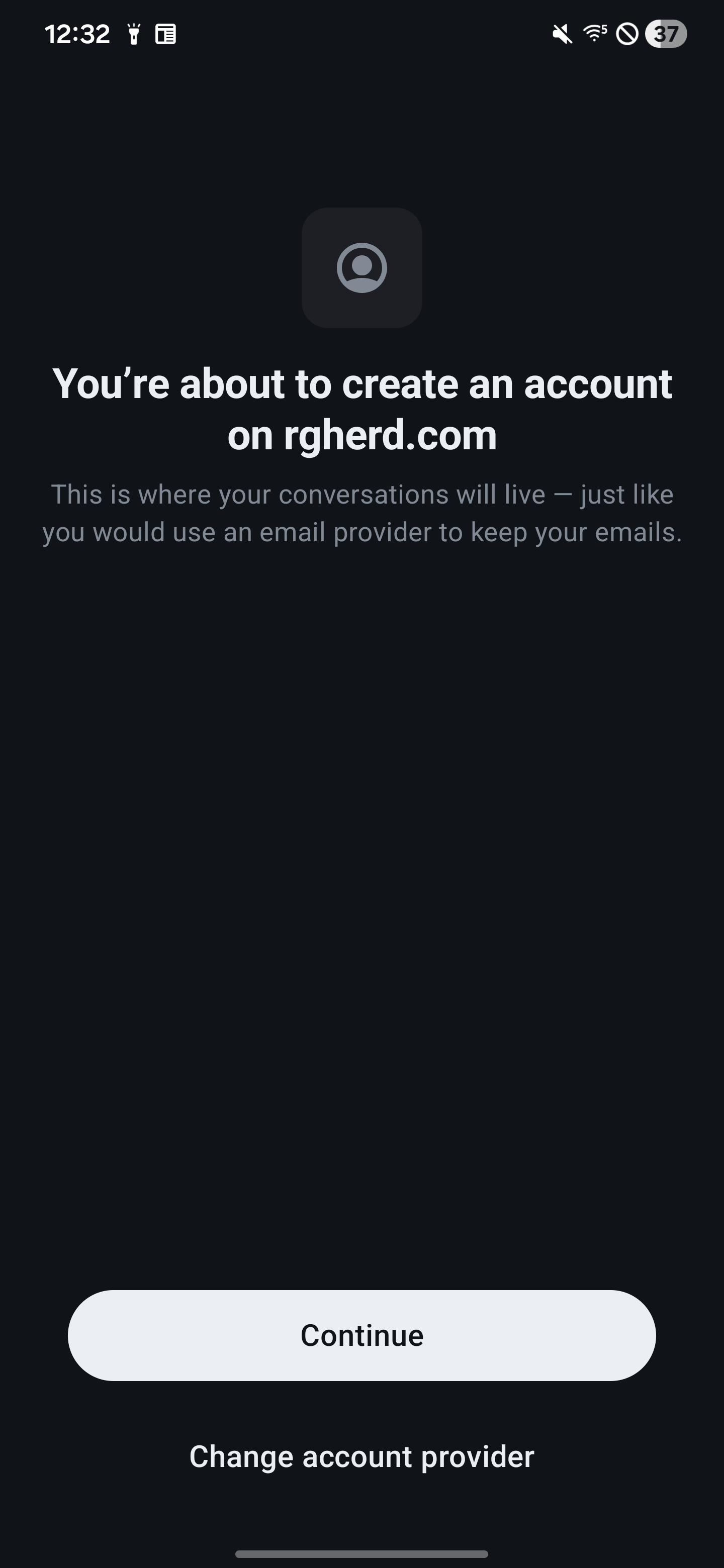
Open Element X and tap Create account.
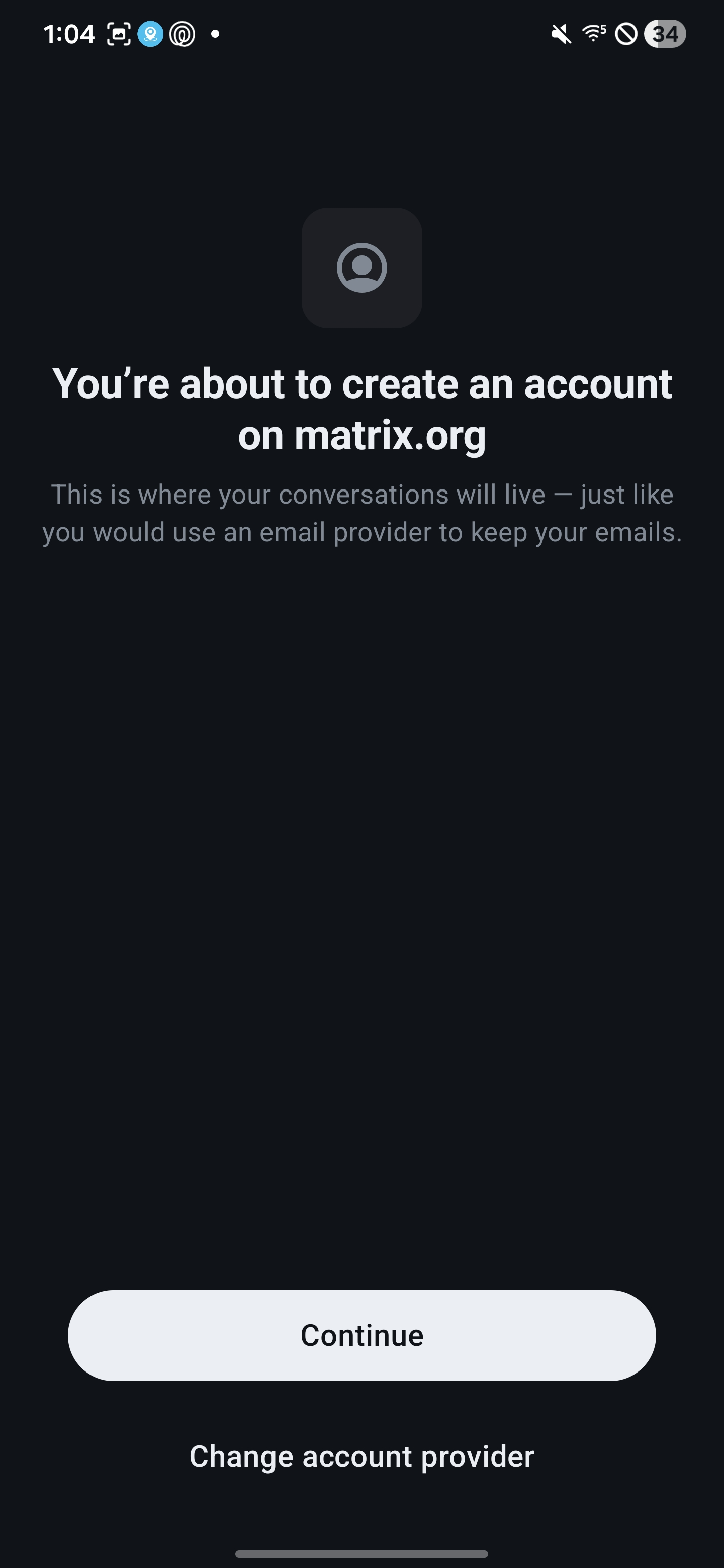
Tap Change account provider.
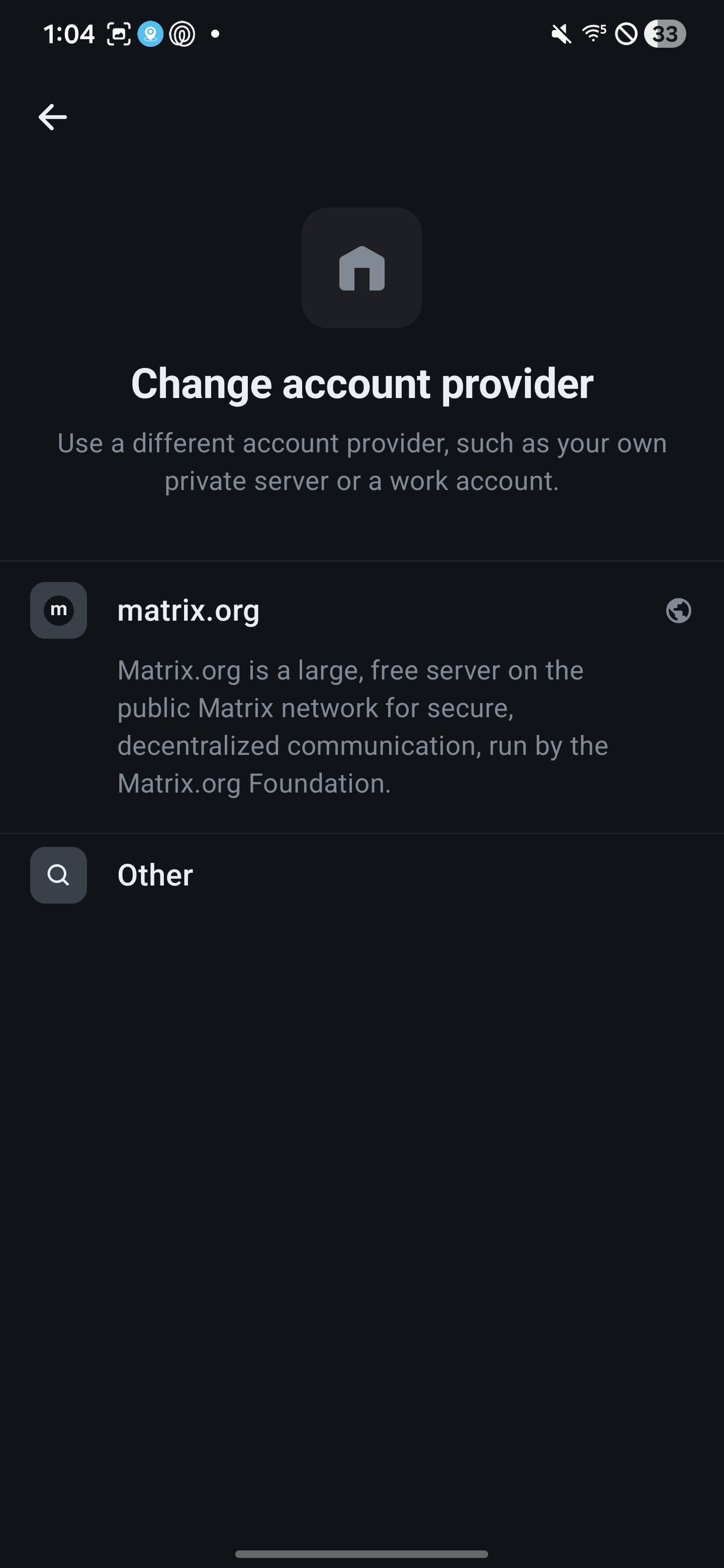
Tap Other to enter a custom server.
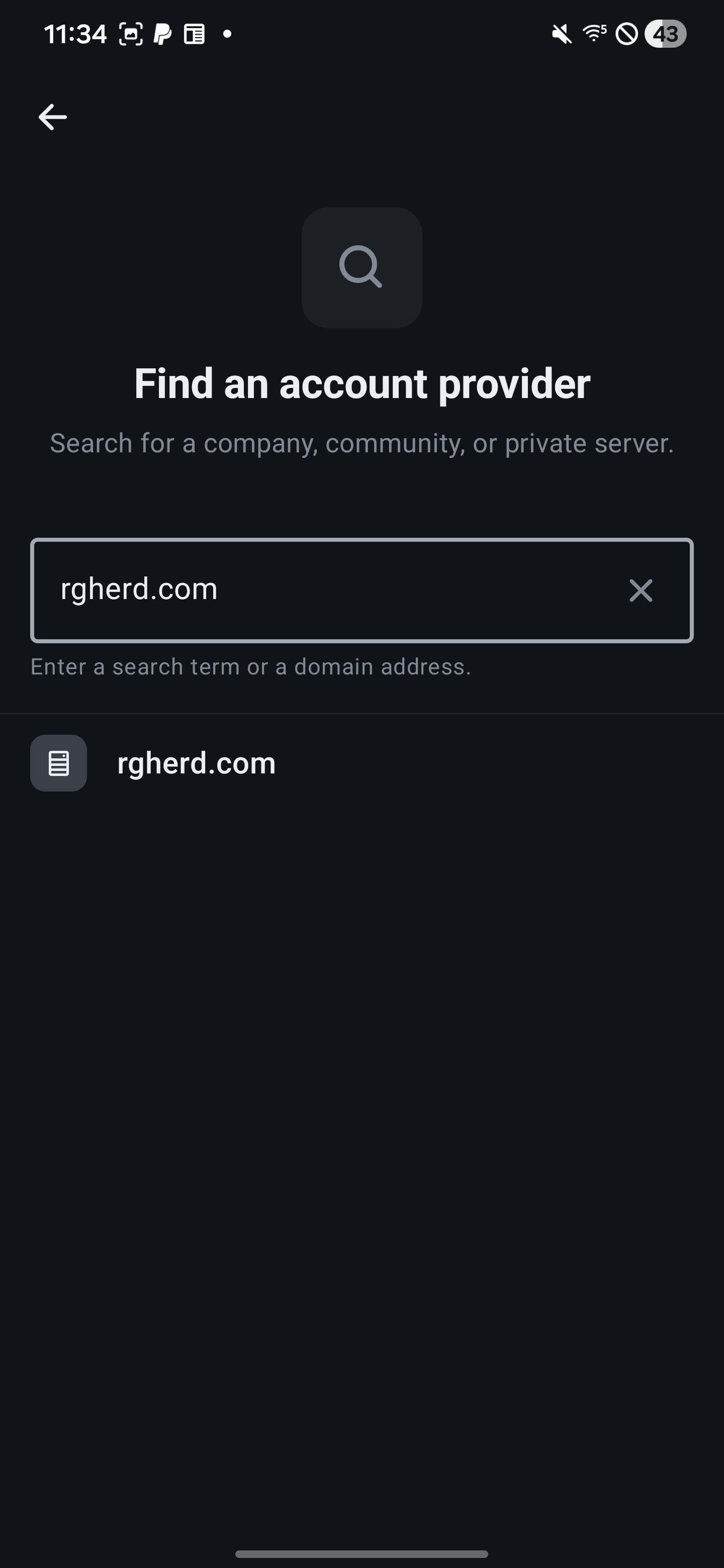
Type rgherd.com and wait for it to appear in the list below.
Tap rgherd.com when it appears and then tap Continue.
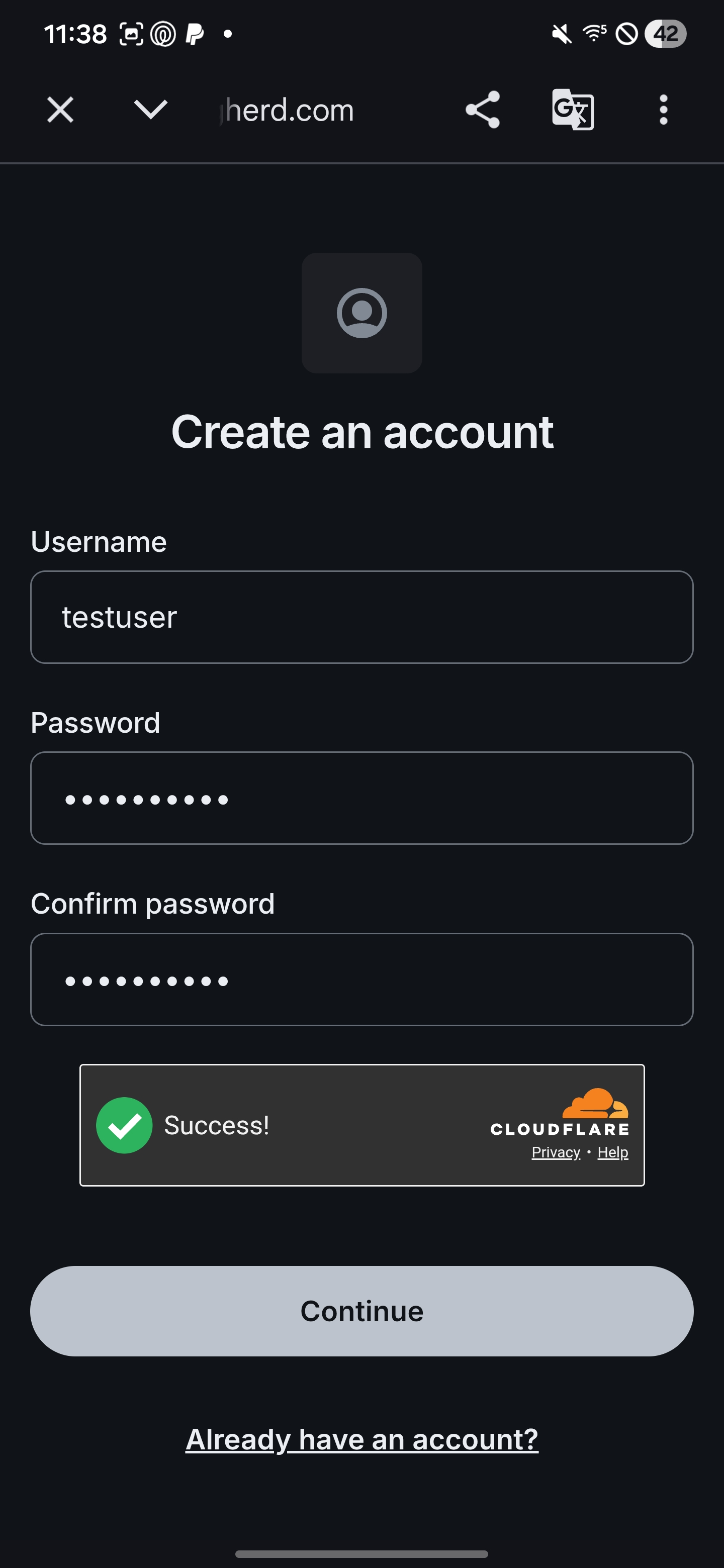
Enter a username + strong password. Confirm password and complete CAPTCHA if prompted, then tap Continue.
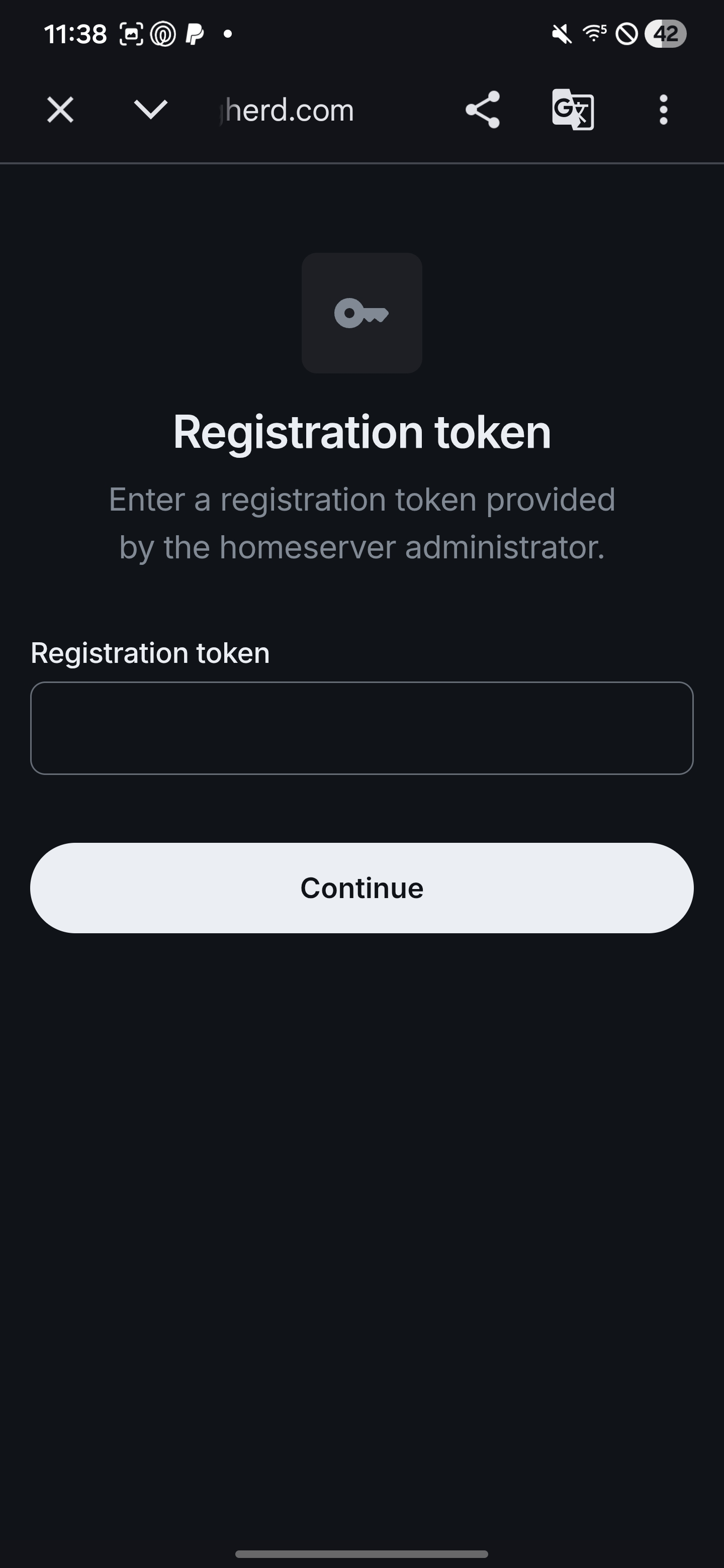
Enter your Registration Token (required) and tap Continue.
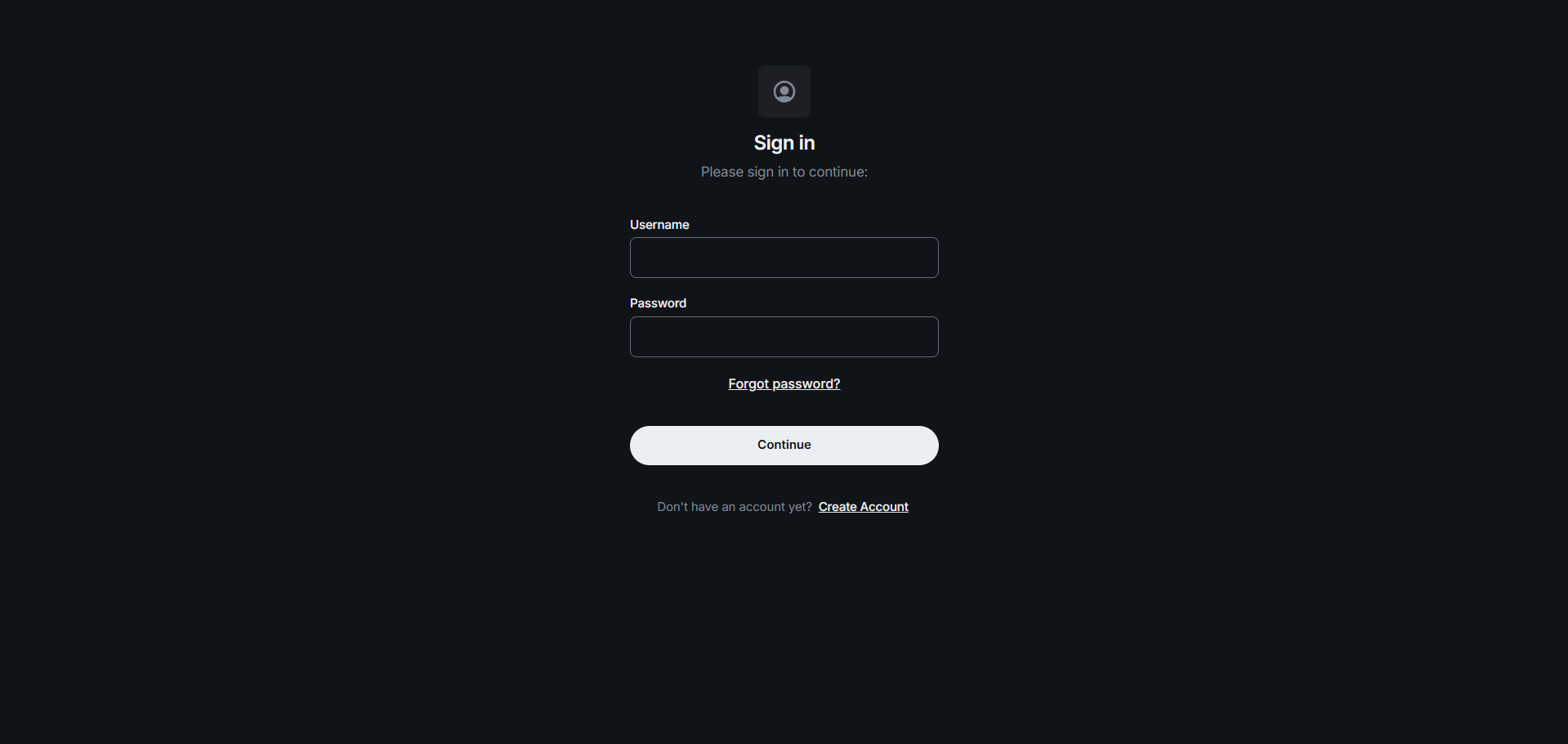
If Ops issued you an account + temporary password, you don’t need to create an account. Sign in instead and change your password immediately.
Use these steps to create an account from desktop. If you’re using the web app, open base.rgherd.com first.
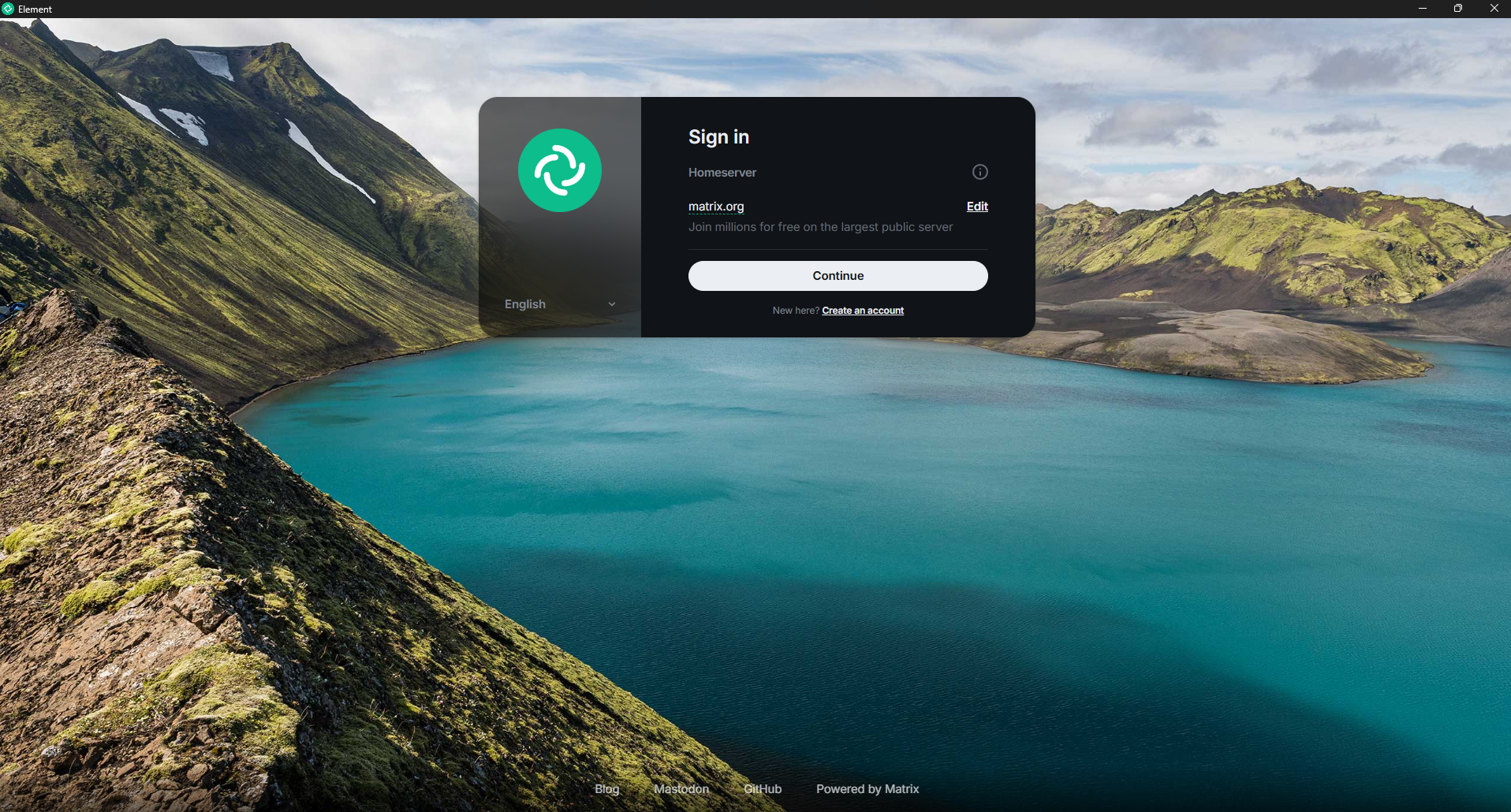
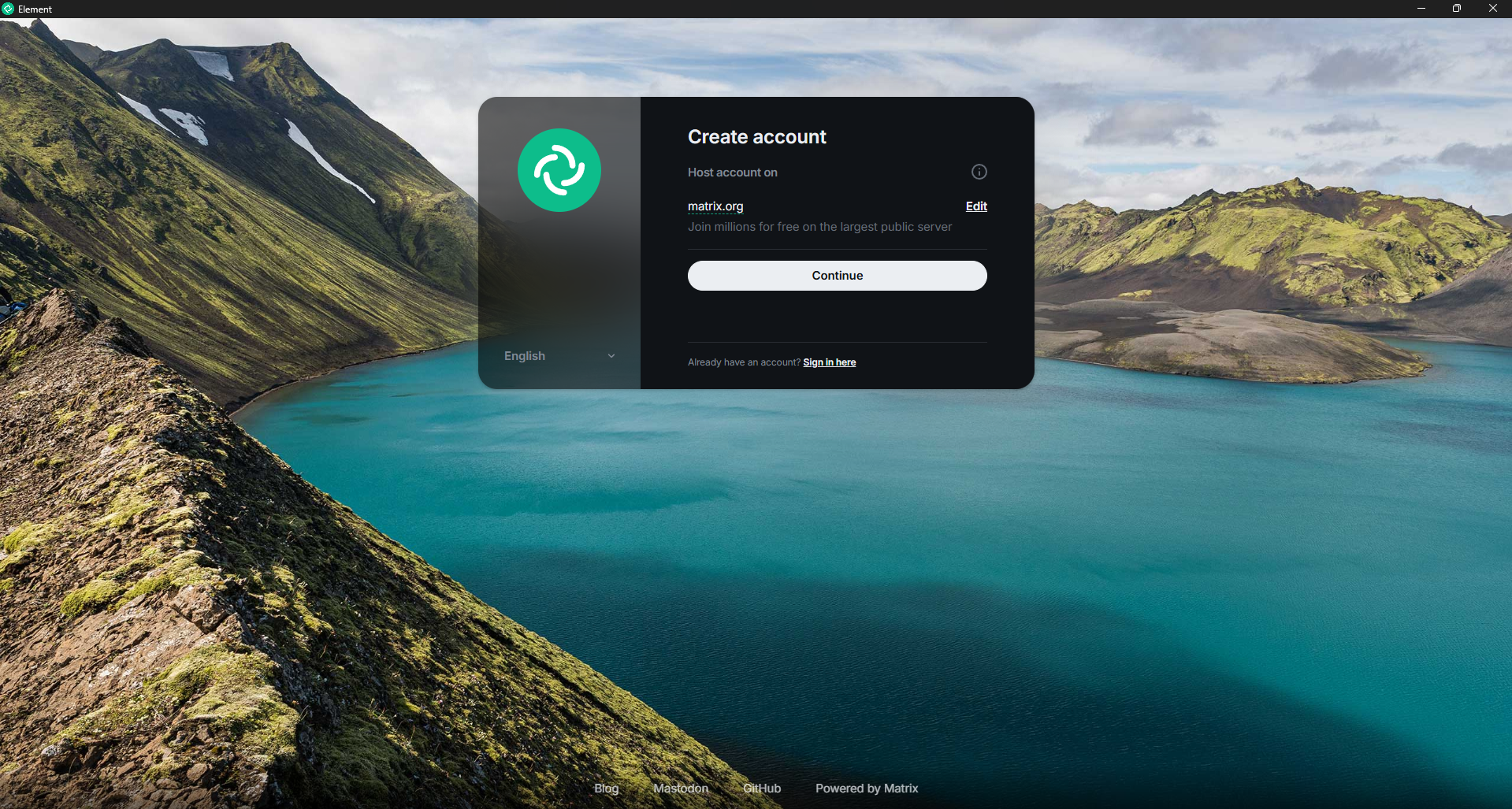
Open Element Desktop. On the first screen, click Create an account.

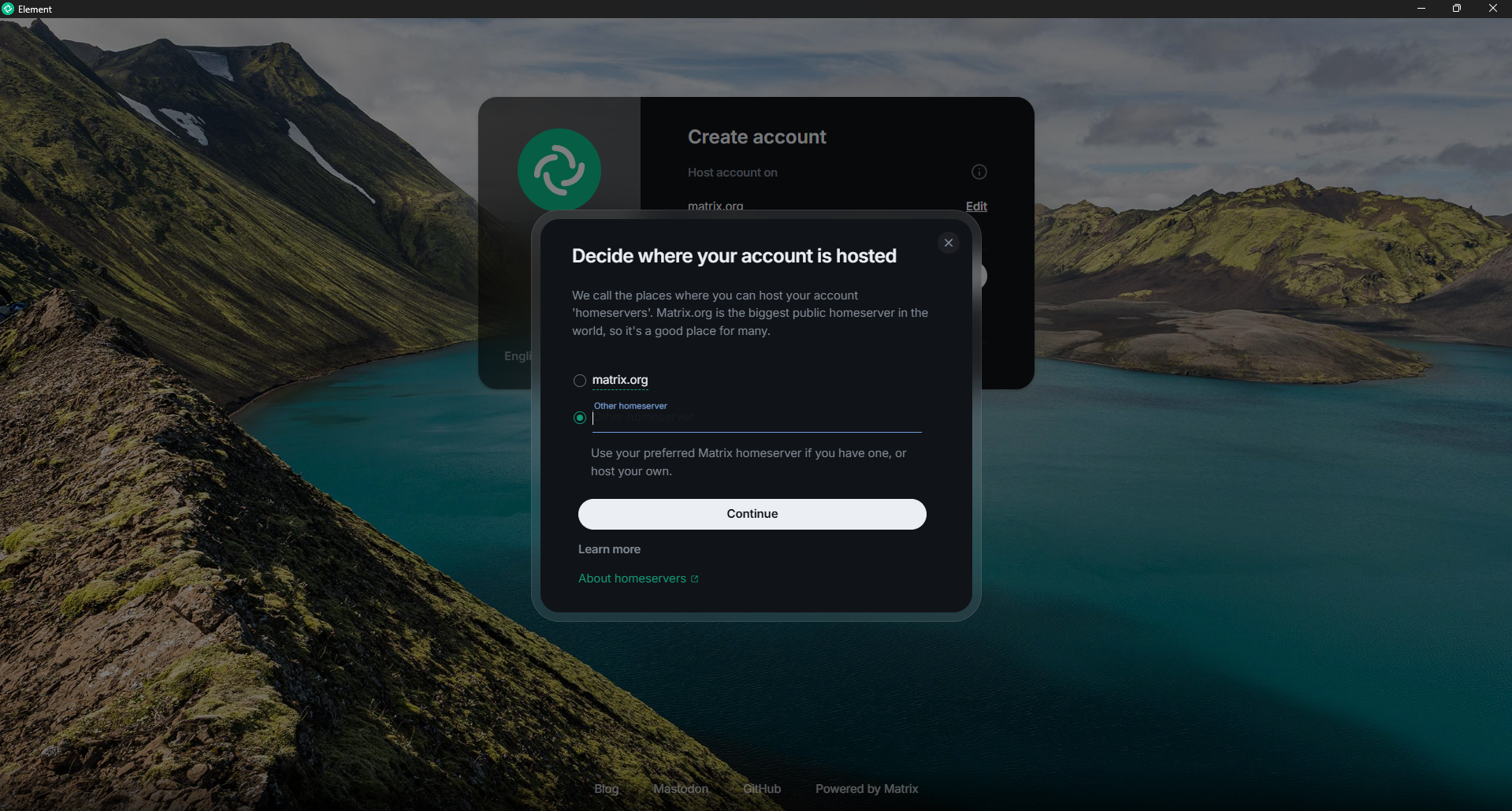
On the Create account screen, click Edit next to Homeserver (if it isn’t already set to base.rgherd.com).

Select Other homeserver, then type base.rgherd.com and click Continue.
Note: If you’re using the RG Herd web app at base.rgherd.com, this may already be set.

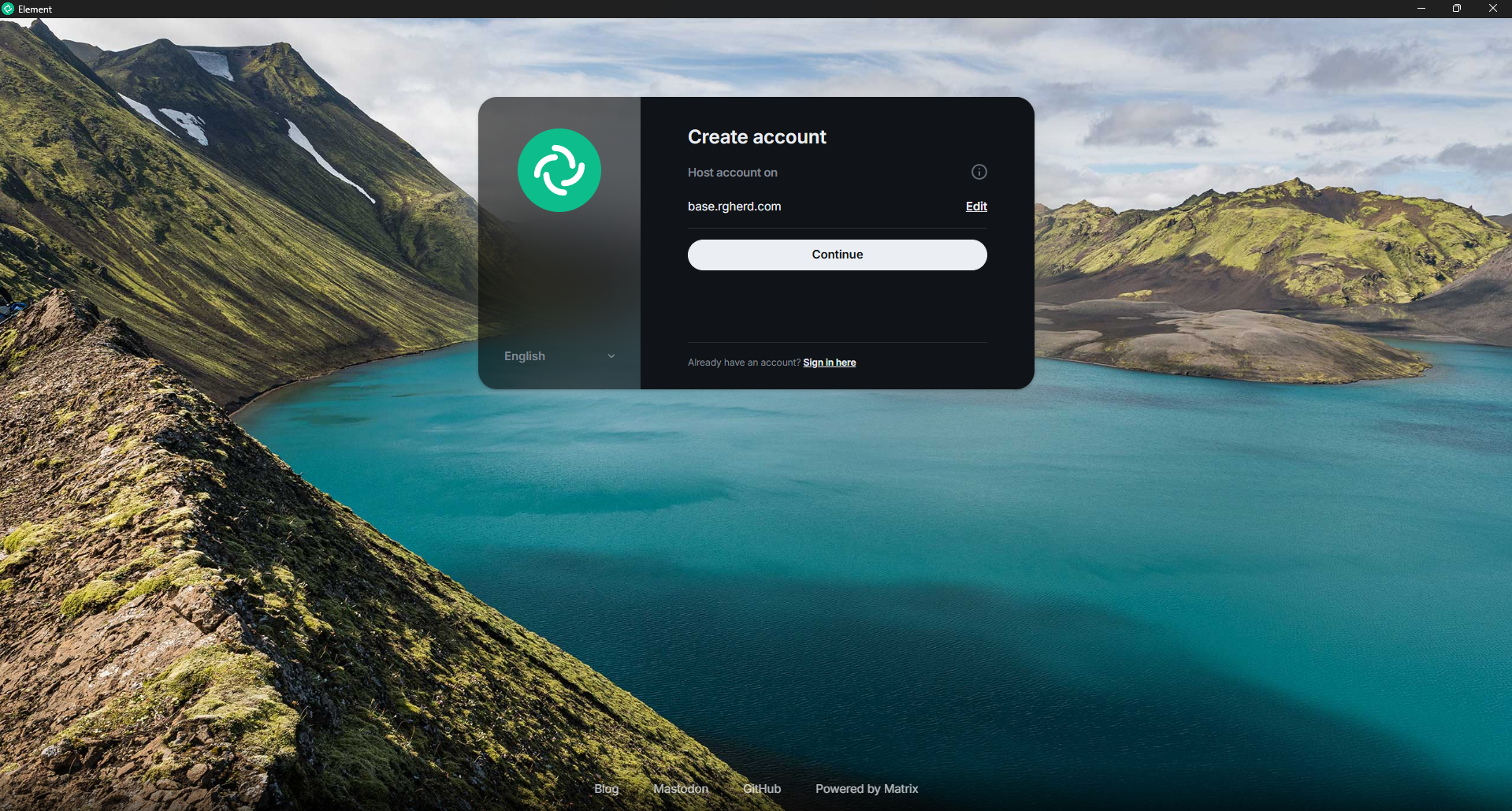
Confirm the Homeserver shows base.rgherd.com, then click Continue.

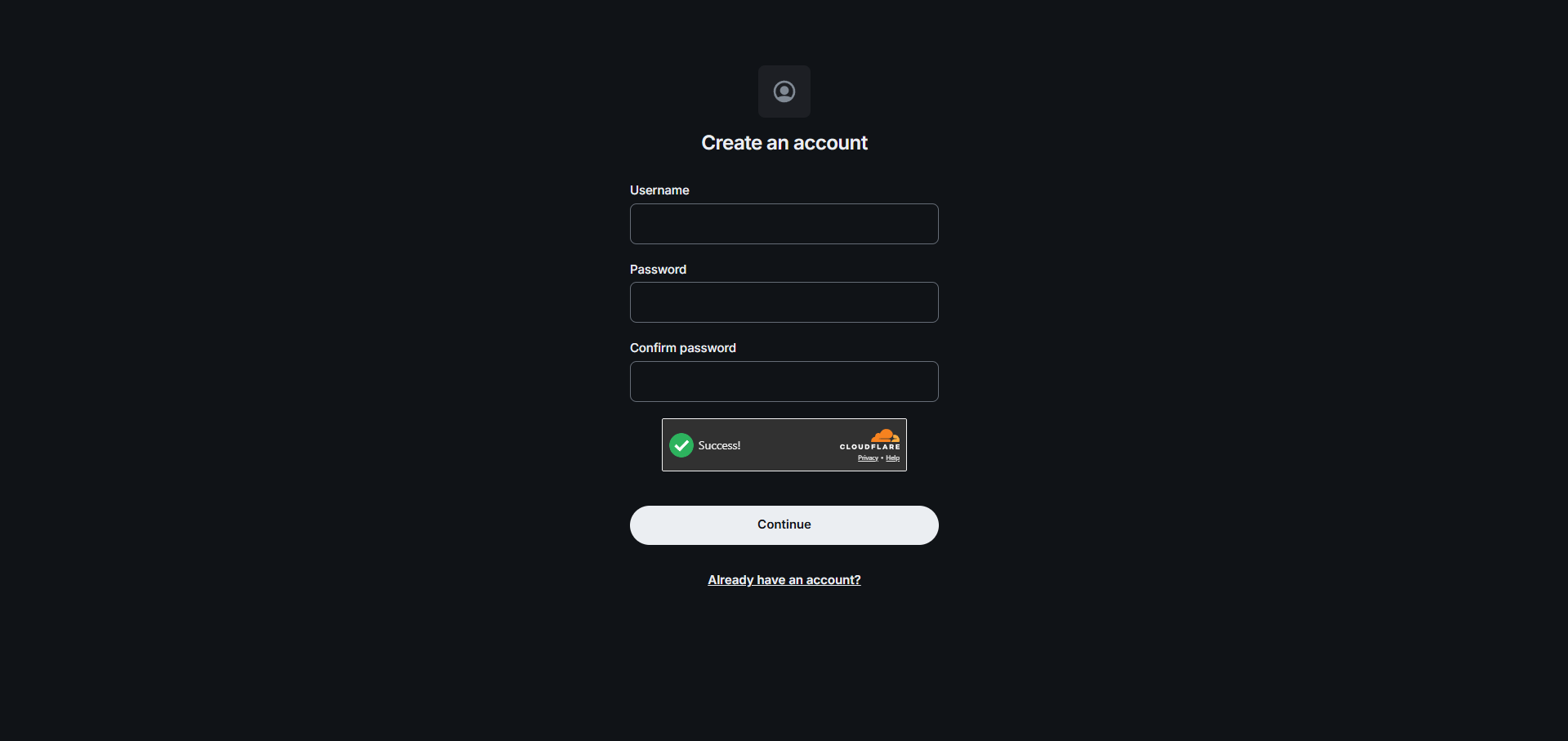
Enter your desired Username, a strong password, confirm it, and complete the CAPTCHA (if prompted). Then click Continue.

If you see “Password is too weak,” use a longer passphrase (12+ characters), multiple words, and avoid reused passwords.
When prompted, paste the Registration Token provided by Ops, then click Continue.

After setup, enable Encryption and store your Encryption Recovery Key somewhere safe (password manager or offline).
This Recovery Key cannot be replaced. Losing it can permanently break access to encrypted history on new devices.
If Ops already provided a username + temporary password, click Sign in, then change your password immediately after logging in.

Registration is token-gated. If you don’t have a token yet, contact Ops.
Ops can issue a token or onboard you with a temporary account if needed.
If you get stuck, don’t brute force it — it usually makes the token situation worse. Send Ops the error + which step you’re on.
Include: client name + step number + exact error text.
This page is designed to be screenshot-friendly and field-usable. As Element UI shifts, we’ll keep screenshots updated and keep the written steps minimal.